2-Parent and Child
In the last example we created a ball GameObject. We got a circle to appear at the location of the GameObject using AddChildShape. Adding a child Shape sets the location of that shape as a child of the GameObject. In the same way we can set a GameObject to be a child of another GameObject.
Let’s create a simple GameObject which has a Rectangle for a Shape. Every frame, we take the Transform of the GameObject and increment the rotation by 0.03 radians so it spins.
class Box : GameObject
{
    public override void Start()
    {
        AddChildShape(new Polygon(vec2.Zero, new vec2(100), 0, 4, Color.White, 10, Color.Red));
    }
    public override void Update()
    {
        transform.Rotation += 0.03f;
    }
}
Canvas Instantiate
GlCanvas.Instantiate is similar to Add in that it will add a GameObject to the canvas. If you would like easy was to set the initial position of a GameObject use Instantiate. Instantiate also creates a deep copy clone of your original which makes it useful for GameObjects with many instances such as projectiles.
Box A = can.Add(new Box()) as Box;
Box B = can.Instantiate(new Box(), new vec2(150)) as Box;
We put the first box in the center of the screen and the second offset from the center. This creates our orbiting effect. If we give both boxes the same global location they will be in the same spot, just spinning at different speeds.
A.AddChildGameObject(B);
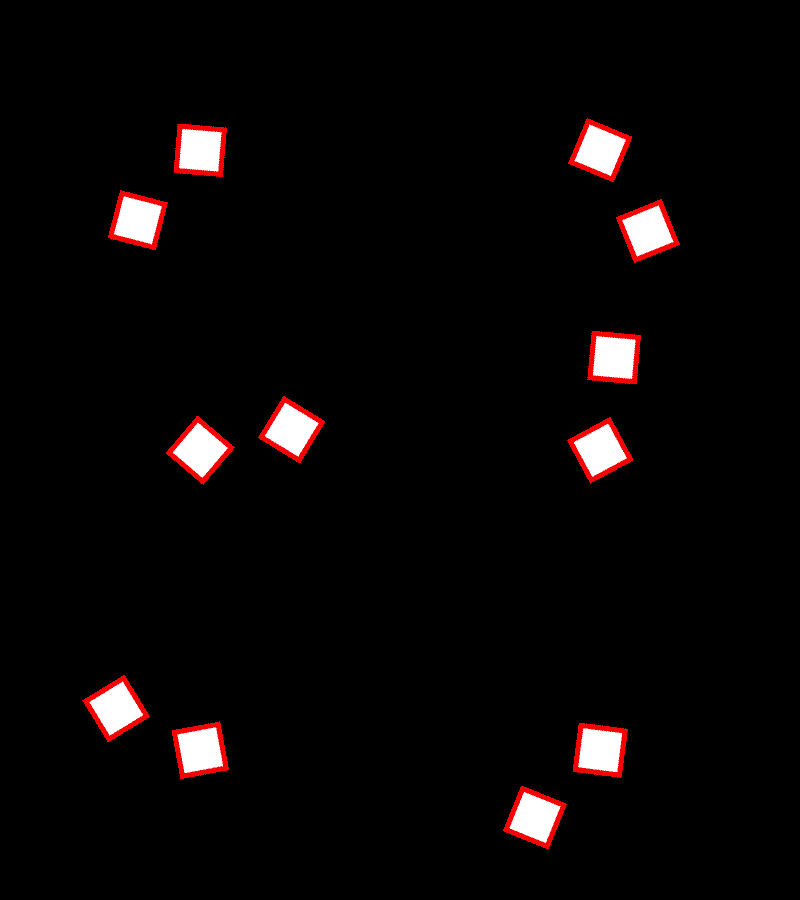
And just like that, we have an orbiting effect. The Transform of Box B will first apply the Transform of the Box A before it’s own.
Using parent child relationships is a great way to accomplish many simple tasks as well. If you have something in your game with multiple elements, you can use parent child relationships to keep them together.